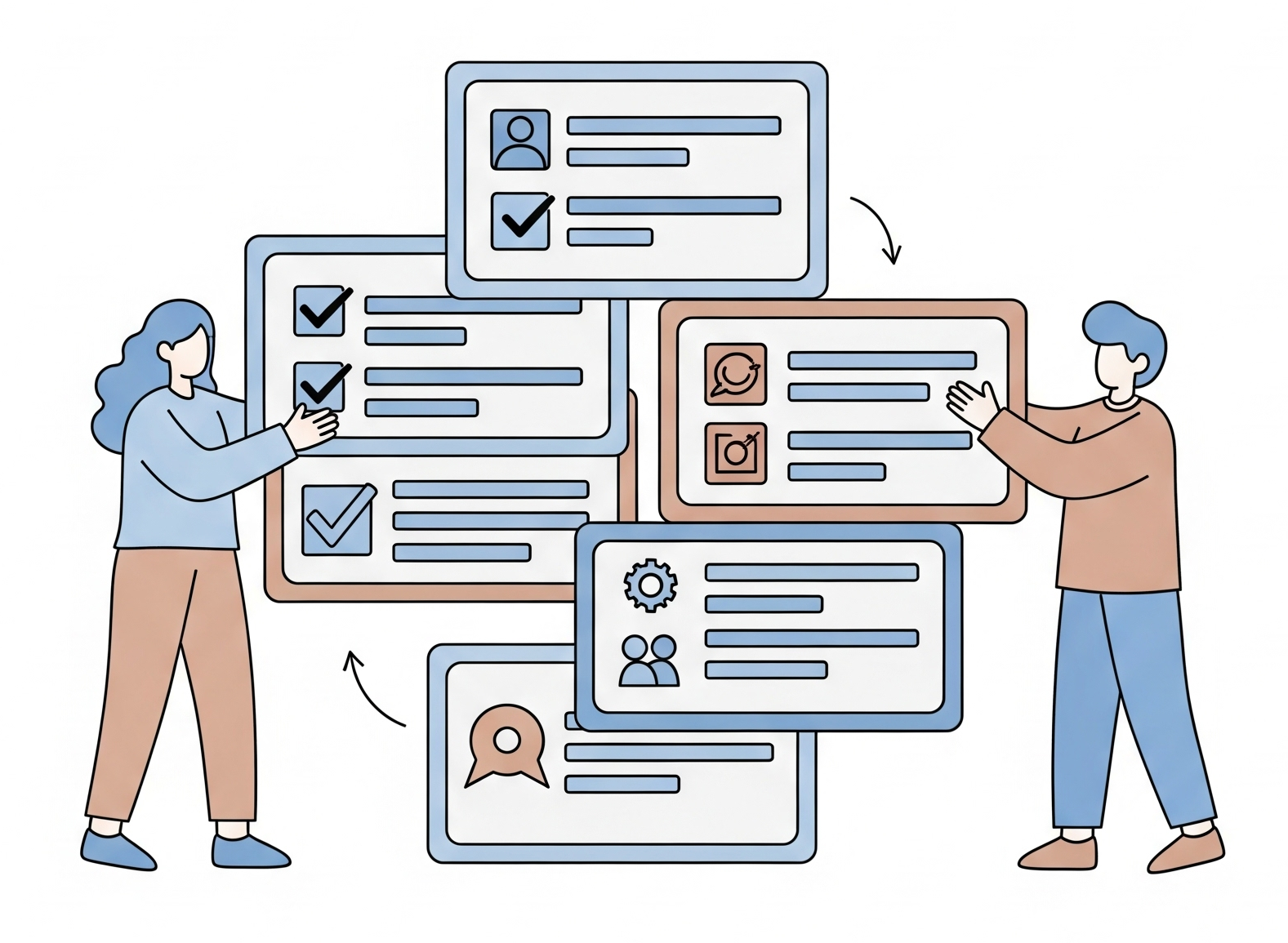
What Are Cards?
A Card is the core data entity in 314 Solutions - a customizable, template-based information container that teams use to track and collaborate on work.
Key Features
Cards are packed with features that make them flexible enough for any workflow while keeping your team organized and accountable.
Template-driven
Every Card starts from a Template that defines its structure, fields, sections, and reminder rules. This ensures consistency across your team while letting you create new Cards in seconds.
Custom Fields
Templates support a rich set of field types including Text, rich multi-line text, Number, Date, and Integration fields. Mix and match to capture exactly the information your process needs - no more, no less.
Collaboration
Invite participants to any Card with role-based access control: Admin, Contributor, or Reader. Threaded comments with reactions keep conversations organized, and tasks can be assigned to specific participants so everyone knows what to do.
Rich Features Per Card
Each Card can hold files, links, associated cards, customer links, notifications, and a full activity log. Everything related to a piece of work lives in one place - no more digging through email threads or scattered documents.
Smart Notifications
Per-user notification controls let each participant choose how they stay informed. Use "Remind Me Later" to snooze a notification and resurface it at the right time, or "Mute" to silence updates on a Card that's no longer relevant to you.
Full-Text Search
Powered by our powerful built-in search engine, you can search across all card content, custom fields, participants, comments, and linked customers. Find what you need fast, without leaving the platform.
AI Integration
"Ask Pi" brings AI-powered search to your Cards. Using advanced AI technology, Ask Pi interprets natural language queries so you can ask questions about your data in plain English and get relevant, context-aware answers.
Archive Workflow
When work is done, Cards can be archived to keep your active workspace clean. Archiving validates that all tasks are closed before the Card moves to the archive, or a Card can be soft-deleted if it was created in error.
Real-Time Updates
Cards push live updates to all participants instantly. When someone adds a comment, completes a task, or updates a field, everyone sees the change in real time - no refresh needed.
Guest Access
External users can create Cards via the guest flow with an admin sponsor. This lets you collaborate with clients and partners without giving them full platform access - they get a simple, guided experience while you stay in control.
Manage Customer Relationships
Cards aren't just about tasks and notes - they're about people. Easily connect your customers, clients, and contacts to the cards that matter to them.
Add Customers to Cards
Associate clients and contacts with any card so the right people are connected to the right work. Whether it's a project, a support ticket, or a follow-up, keep everyone linked.
Remove Customers
Easily unlink a customer from a card when a relationship changes. Keep your card associations clean and up to date without hassle.
Search & Browse
Find any customer associated with a card using searchable, paginated customer lists. Quickly locate who's connected to what, even across hundreds of cards.
Link Related Cards
Keep your work connected. Link related cards together so you can navigate between associated projects, tasks, or clients in one connected view.
Connect Related Cards
Cards can be linked together to connect related work. Navigate between associated cards and keep related projects, tasks, or clients organized in one connected view.
How to Use Cards
Getting started with Cards is simple. Follow these six steps to turn your process into a structured, collaborative workflow.
Create a Template
Define the structure, fields, and reminder rules that match your process.
Create a Card from the Template
Fill in the fields with the information for this specific piece of work.
Add Participants
Collaborate with team members and external guests, each with the right role.
Add Tasks, Files, Comments
Build out the work inside the Card so everything stays in context.
Set Reminders
Automate follow-ups so nothing slips through the cracks.
Track Progress
Use the dashboard and full-text search to see where things stand and find what you need.
Ready to Get Started?
Register for a free account and start building your first Card today.

Collaborate with Comments & Reactions
Cards come alive when your team can discuss, react, and share feedback. Built-in commenting tools keep every conversation organized and searchable.
Threaded Discussions
Start conversations and reply in threaded comments so discussions stay organized. No more scrolling through a flat list of messages.
Quote & Reply
Quote a specific comment to provide context when you reply. Make sure everyone knows exactly what you're responding to.
Emoji Reactions
React to comments with emoji so your team can acknowledge and express feedback quickly. A simple thumbs up or heart can say it all.
Search Through Comments
Search across all comments on a card to find past discussions and decisions fast. Never lose track of an important conversation.